February 7, 2026
How to Organize YouTube Channels Into Groups (2026 Guide)
Organize multiple YouTube channels into custom groups using TubeFlow. Fast step-by-step workflow for a cleaner subscriptions view.
Posted by
 Harshit Saini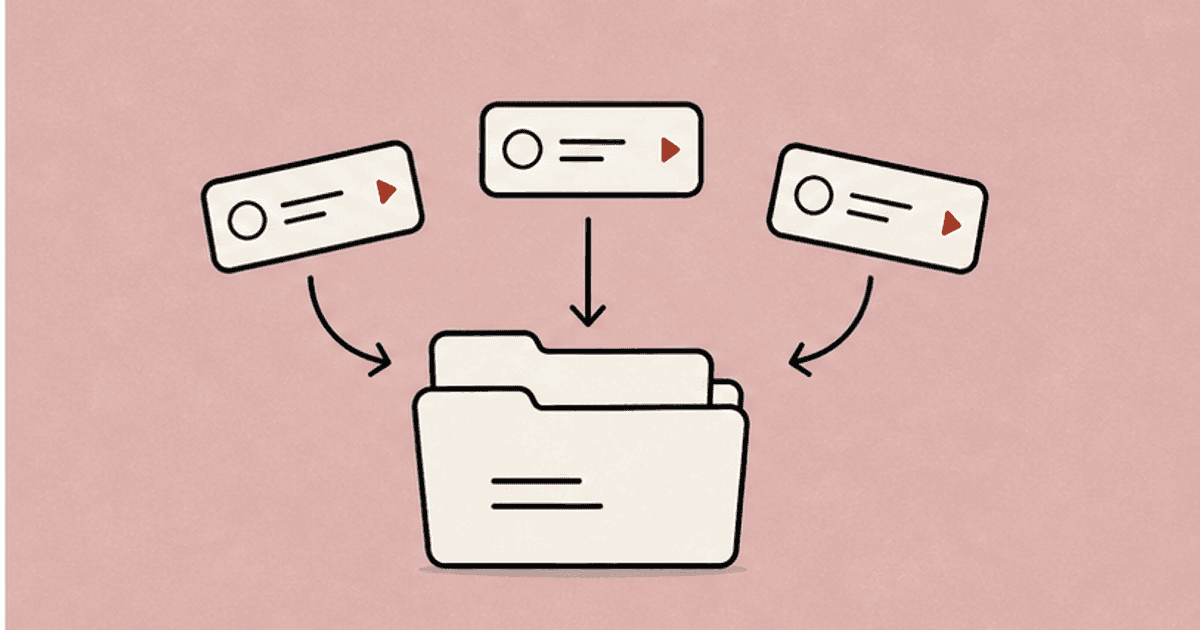
Once your subscriptions grow, your channel list gets noisy fast. Grouping channels by intent, like Workout, Podcasts, or Business, makes your feed easier to navigate.
YouTube does not provide an official way to organize channels into groups, so this workflow is TubeFlow-centric.
Want related cleanup guides? You can also learn how to unsubscribe from multiple channels, group playlists, or merge playlists.
Method: Organize Channels Into Groups with TubeFlow
Open TubeFlow App and follow these steps.
Step 1: Open Subscriptions
In the left sidebar, click Subscriptions to load your channel list.
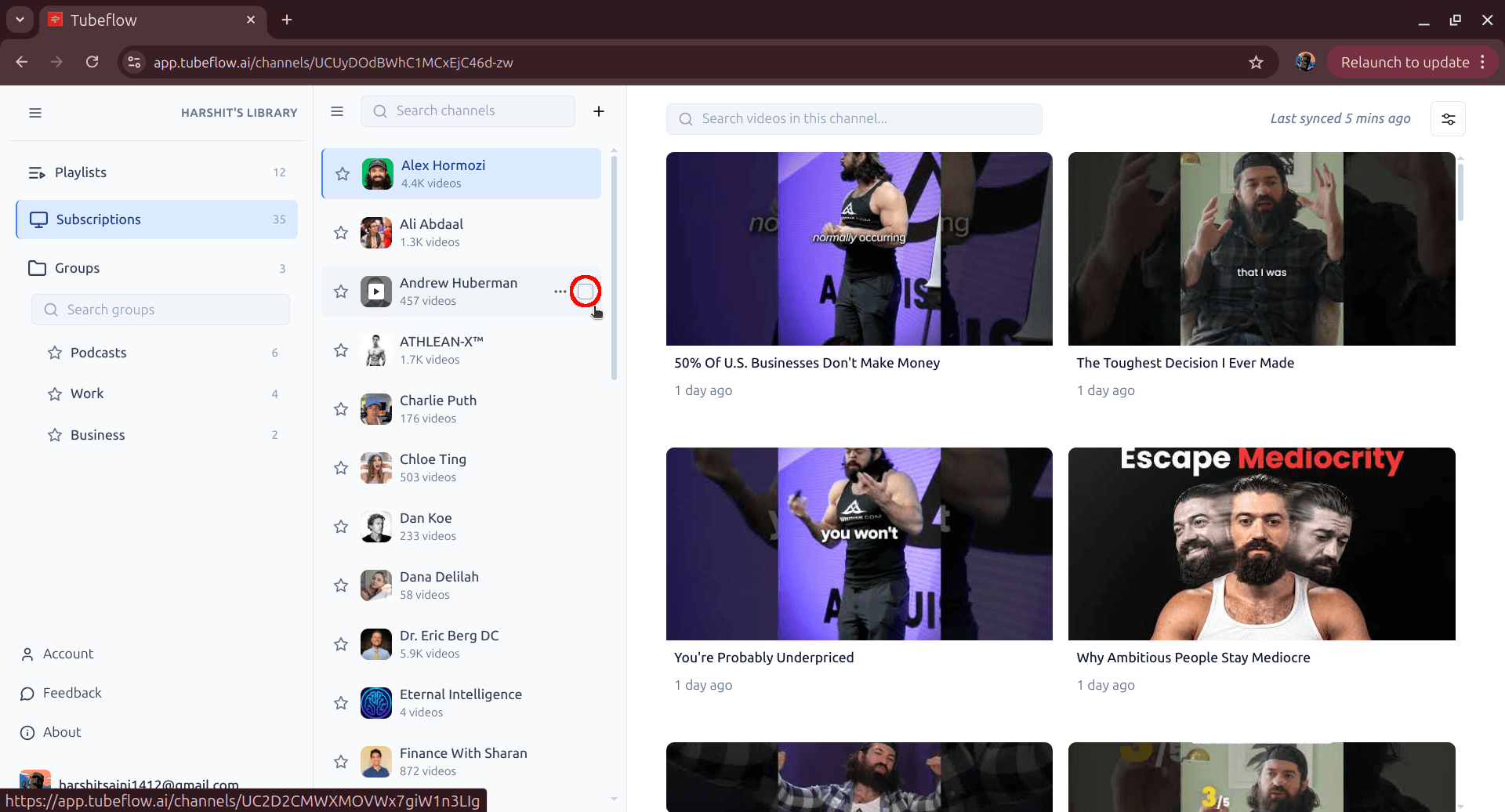
Step 2: Select Channels to Group
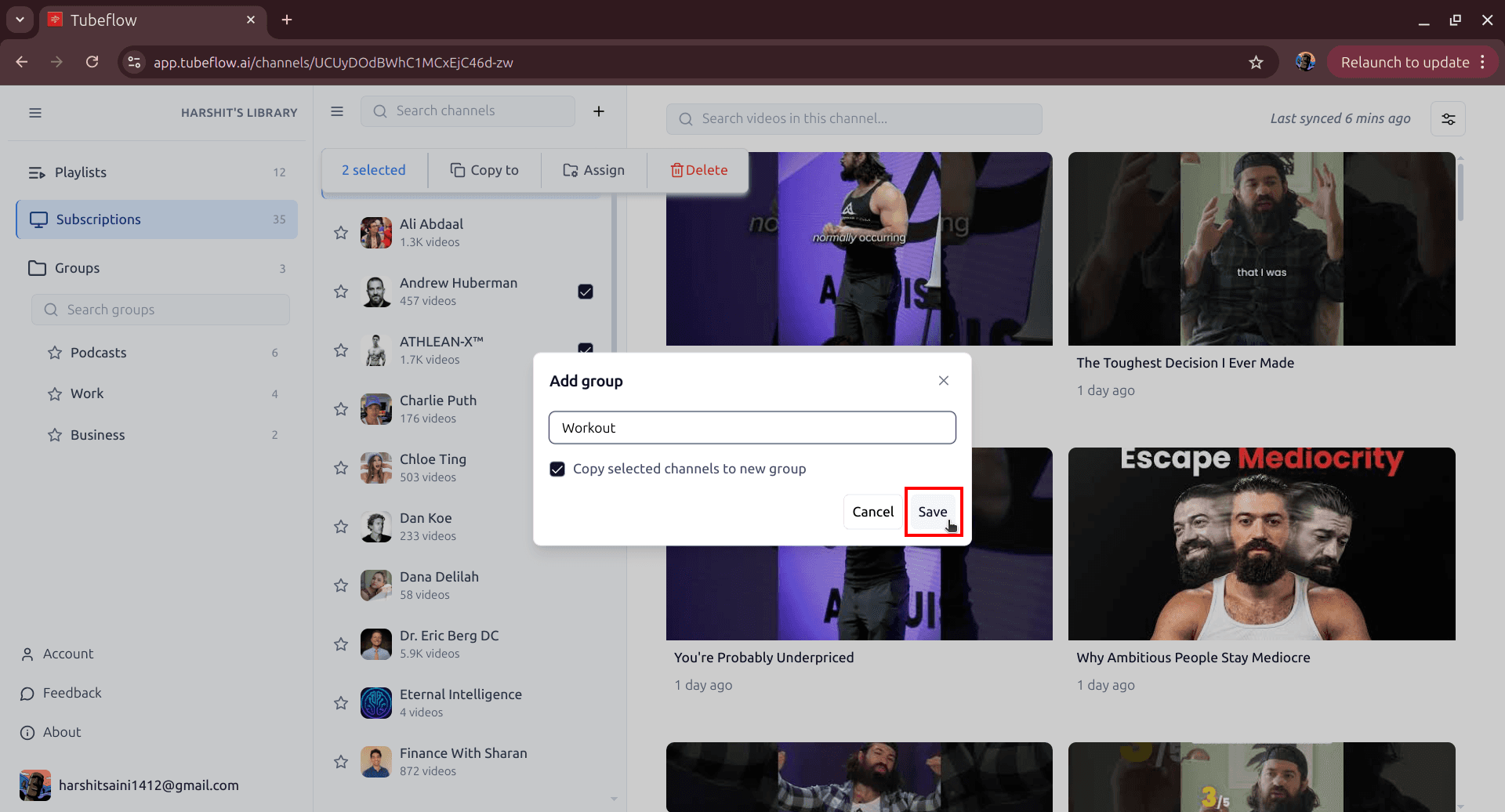
Tick the checkboxes for channels you want in one group. Once selected, the top action bar appears.
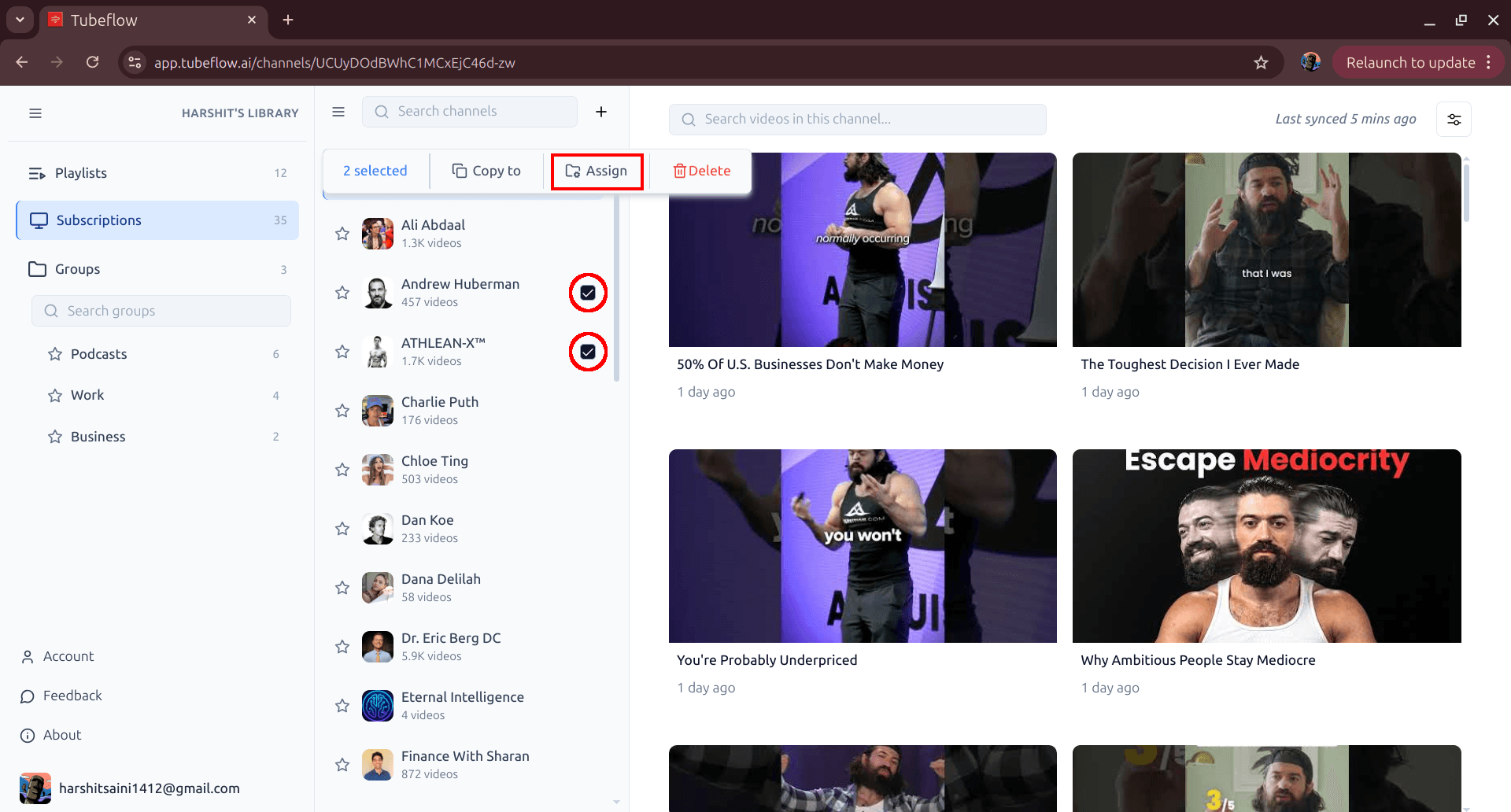
Step 3: Open Assign and Click New Group
Click Assign in the top toolbar, then click New group.
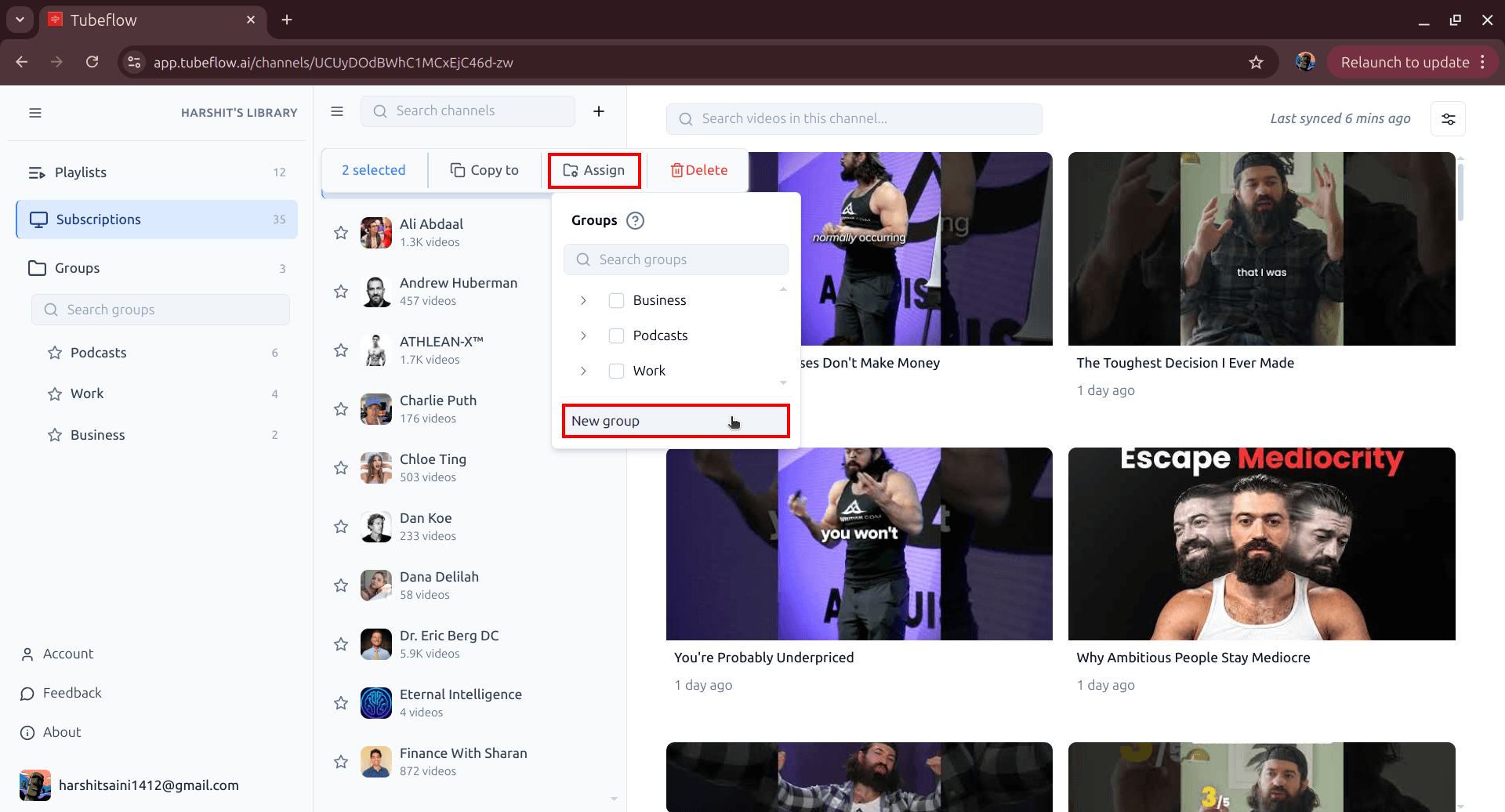
Step 4: Name the Group and Save
Enter a group name and click Save in the Add group dialog. Keep Copy selected channels to new group enabled to add all selected channels immediately.
Step 5: Open the Group and Verify
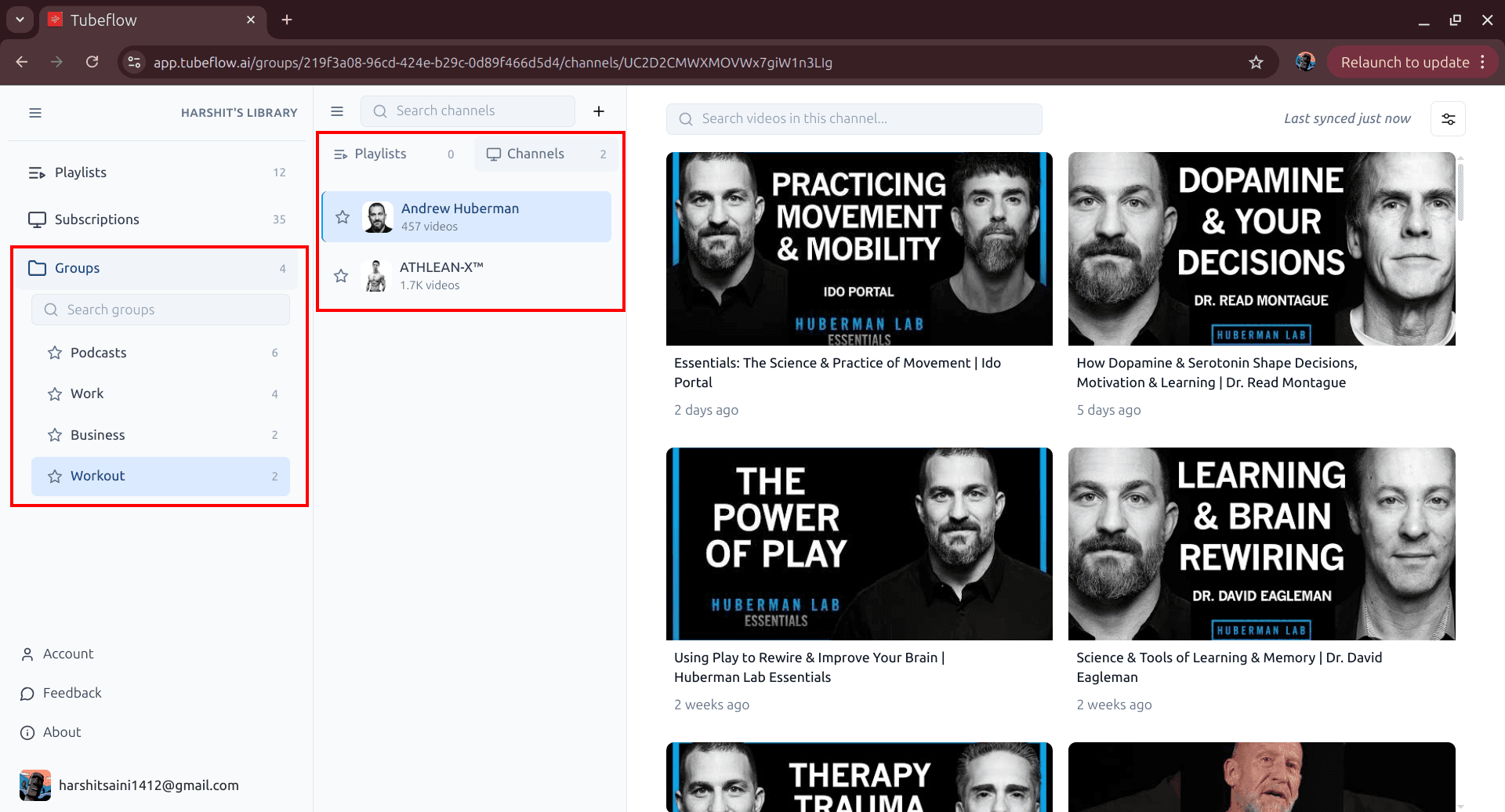
Open your new group from the left sidebar under Groups and confirm the selected channels appear inside it.
Wrap Up
Grouping channels gives you a cleaner subscription system and faster access to what you actually watch. If you curate channels regularly, TubeFlow makes the process consistent and easy to repeat.
Related Articles
How to Merge YouTube Playlists Into One (2026 Guide)
Merge multiple YouTube playlists into one final playlist. Step-by-step manual method and faster TubeFlow merge workflow.
How to Organize YouTube Playlists Into Groups (2026 Guide)
Organize multiple YouTube playlists into custom groups using TubeFlow. A fast step-by-step workflow to keep your library clean.
How to Unsubscribe from Multiple YouTube Channels Fast
Unsubscribe from multiple YouTube channels quickly. Step-by-step guide for manual cleanup and fast bulk unsubscription using TubeFlow.