February 7, 2026
How to Merge YouTube Playlists Into One (2026 Guide)
Merge multiple YouTube playlists into one final playlist. Step-by-step manual method and faster TubeFlow merge workflow.
Posted by
 Harshit Saini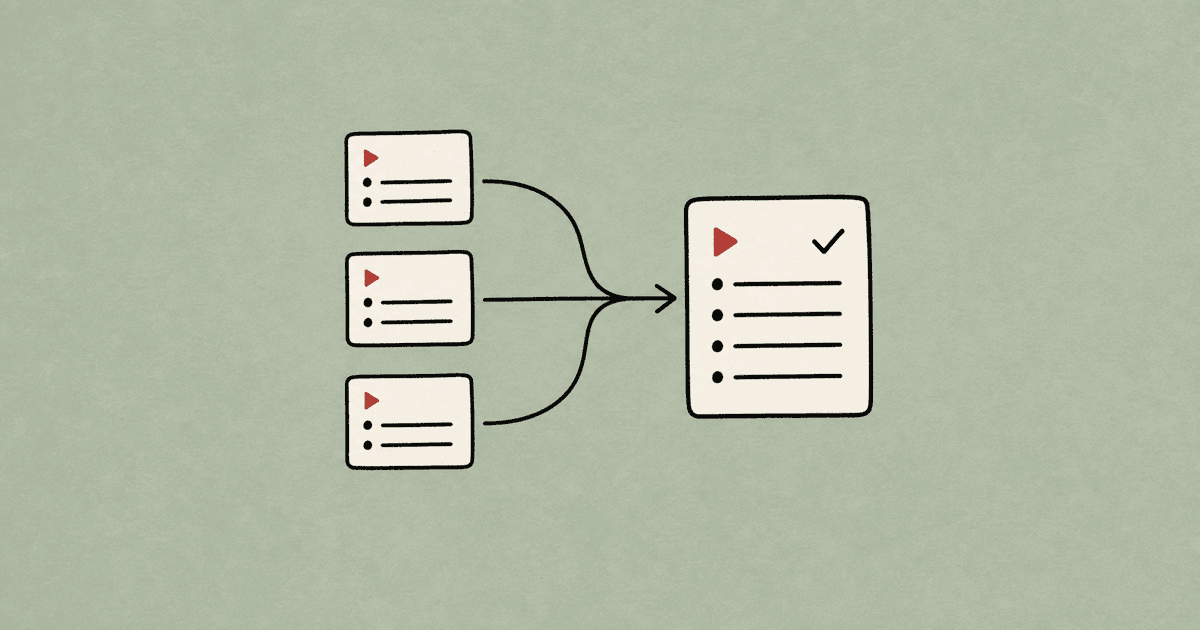
If your playlists are scattered, the cleanest setup is to choose one final playlist and merge the rest into it. Most people pick the largest playlist as the destination, then rename it once everything is combined.
Need related cleanup guides? You can also check how to delete multiple playlists, remove videos from playlists, or move and copy videos between playlists.
Method 1: Manual YouTube Merge (Slow)
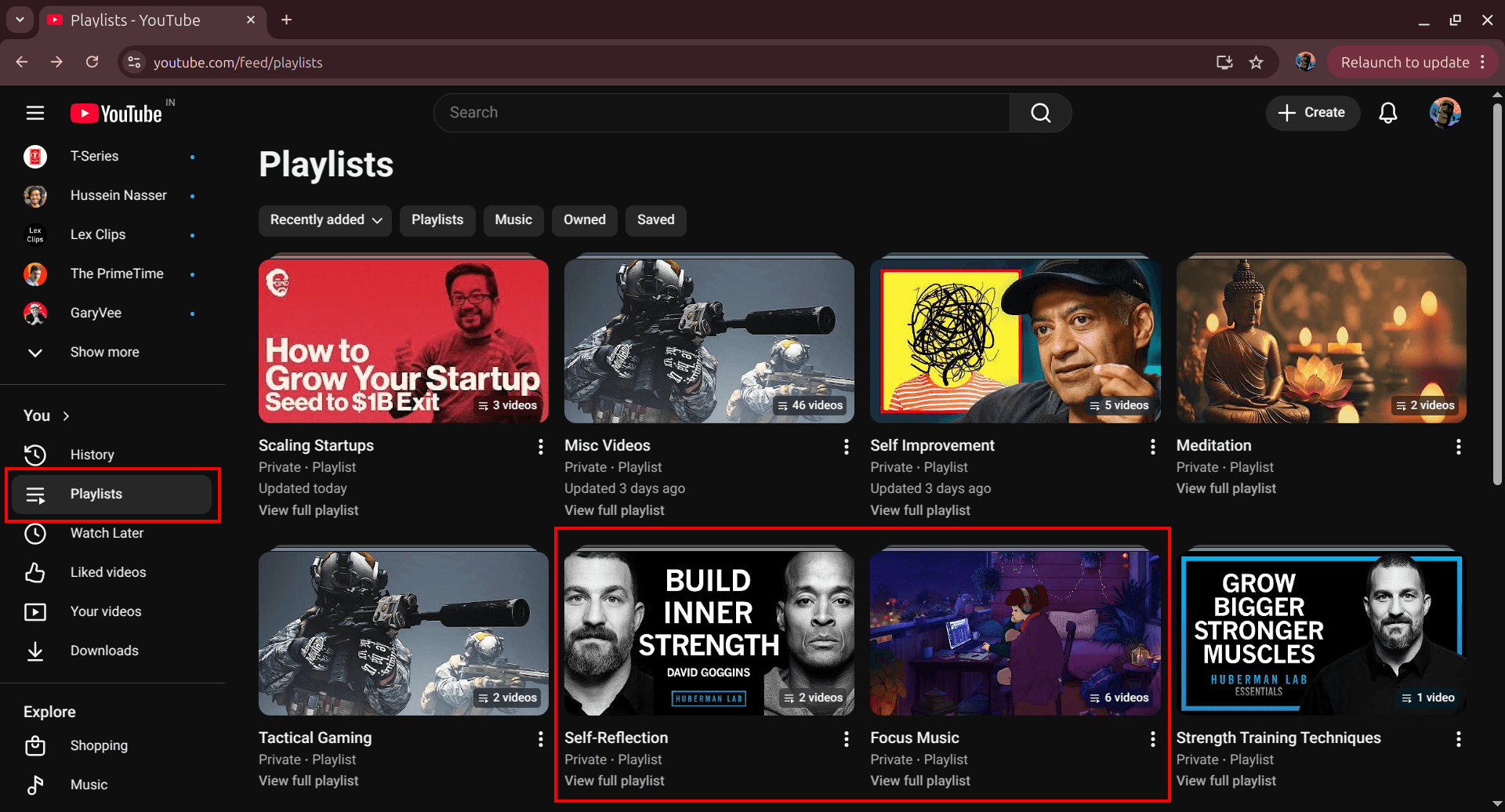
Step 1: Open Your Playlists
Open https://www.youtube.com/feed/playlists and identify your destination playlist (usually the largest one) plus the secondary playlists you want to merge into it.
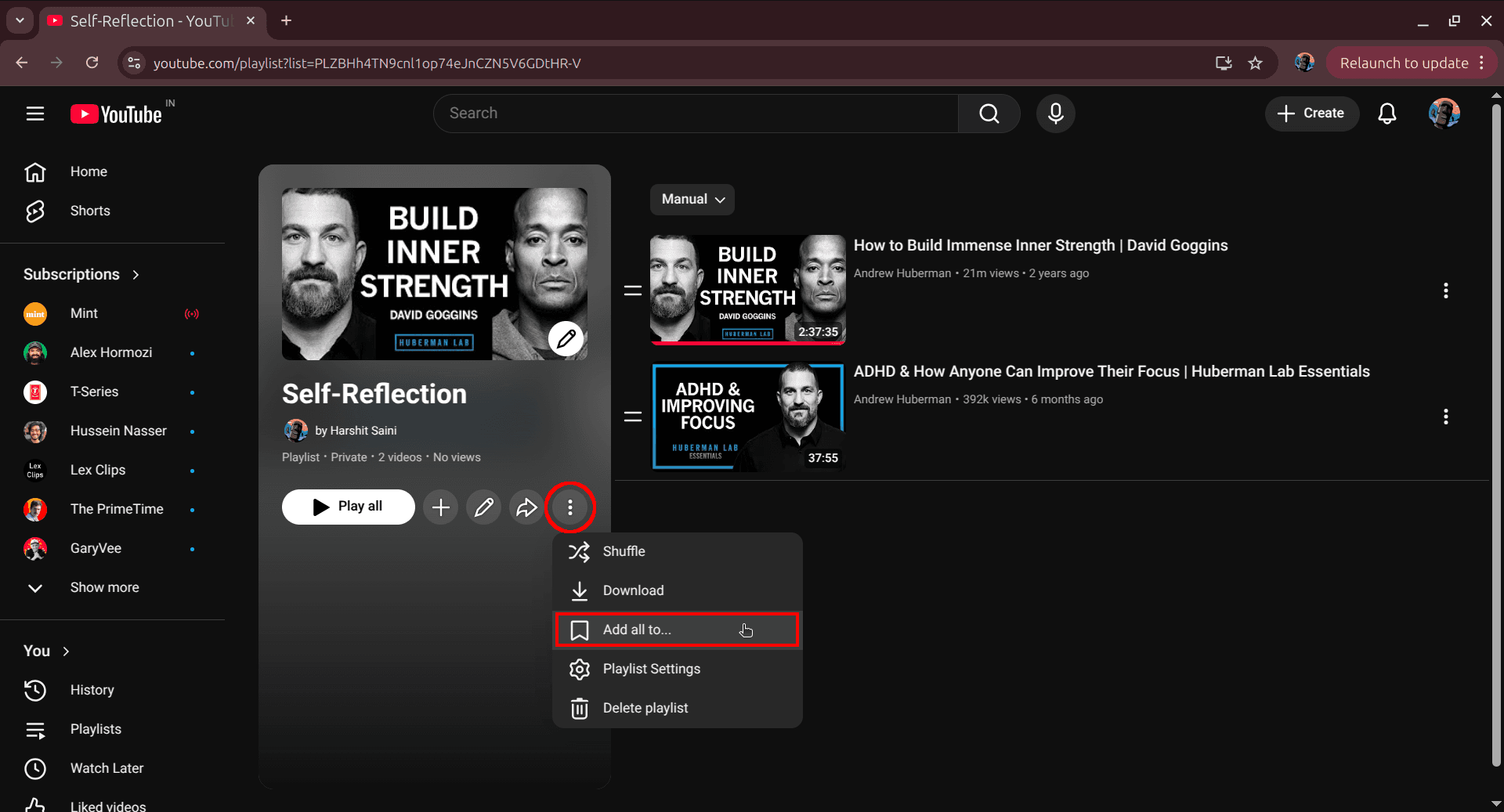
Step 2: Open a Secondary Playlist Menu
Open one secondary playlist, click the three-dot menu, and choose Add all to....
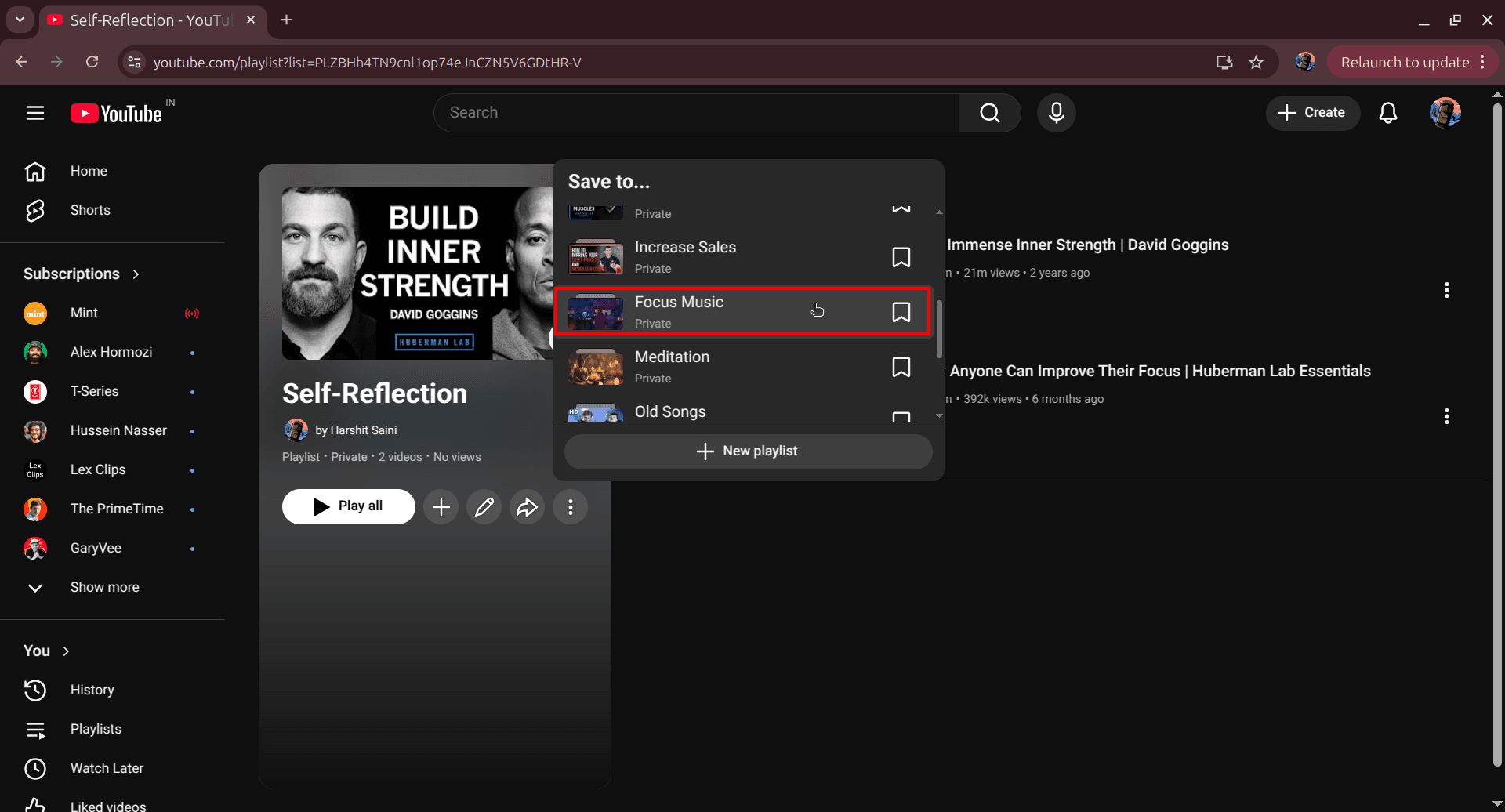
Step 3: Select the Final Playlist
In the playlist selector, click your destination playlist to add all videos from the current secondary playlist.
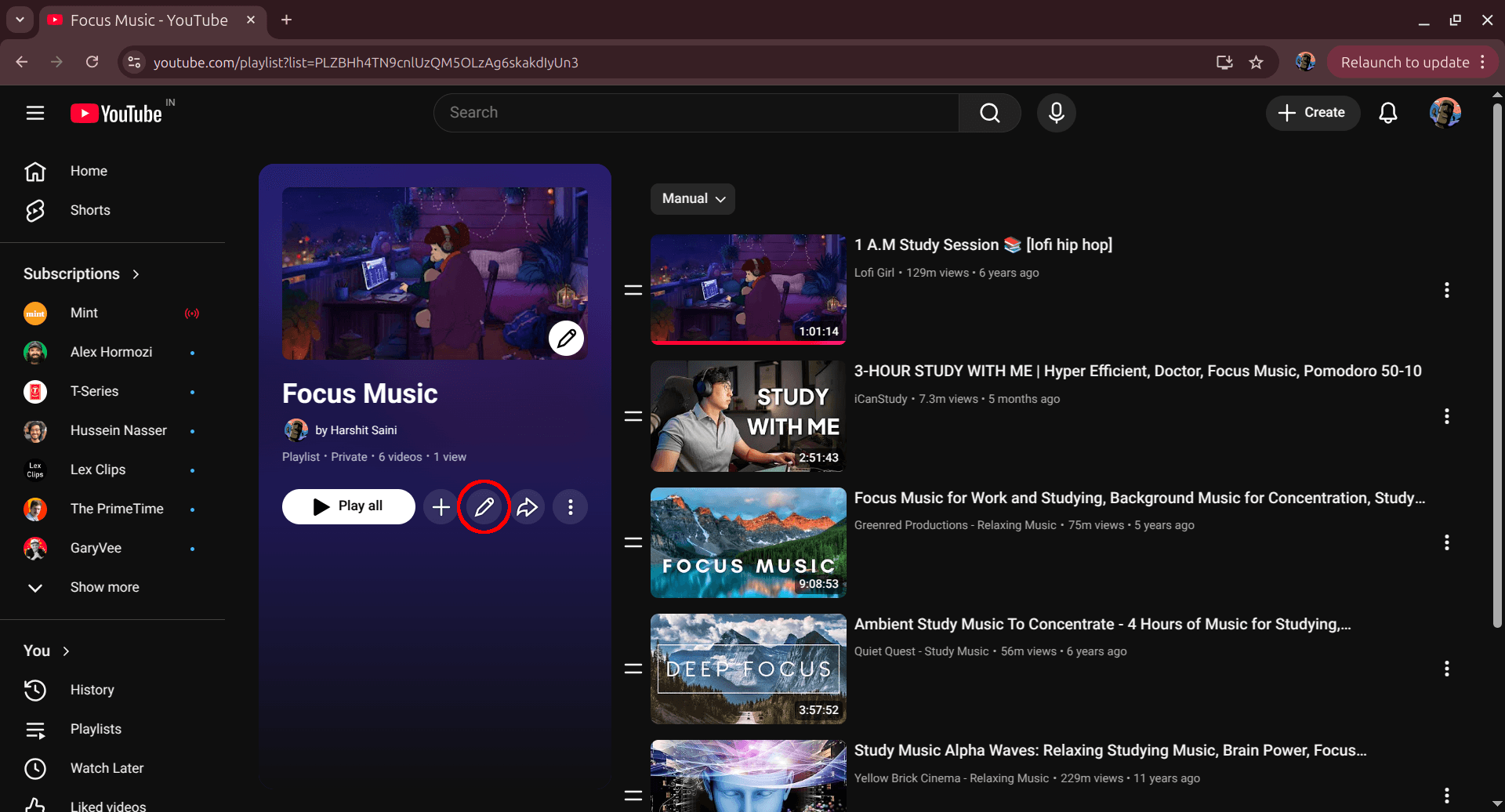
Step 4: Open the Final Playlist and Edit
Go back to the final playlist and click the edit icon so you can update the playlist name after merging.
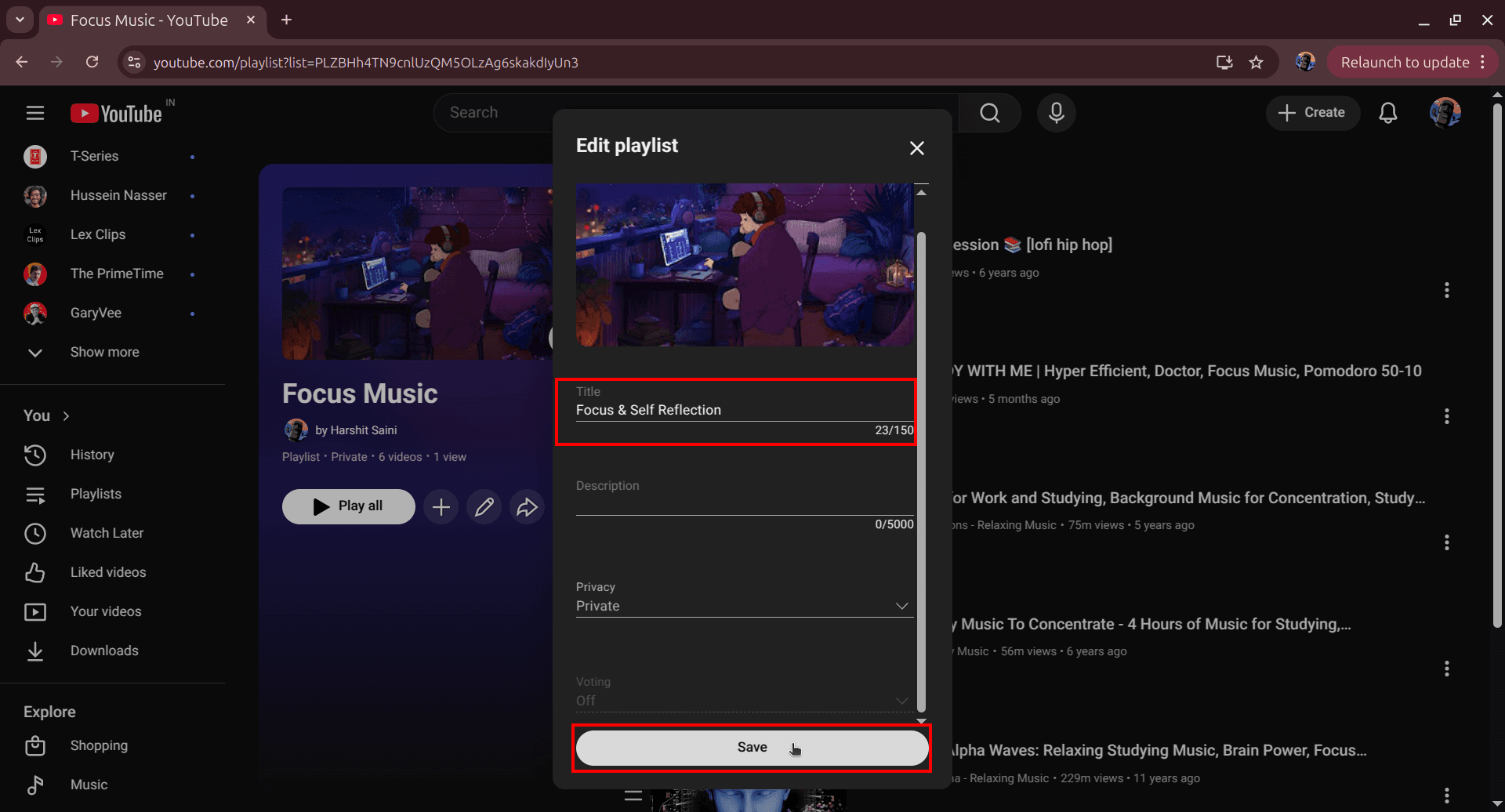
Step 5: Rename and Save
Rename the final playlist to match the new combined theme, then save changes.
Repeat Steps 2 and 3 for each remaining secondary playlist. This method works, but it takes a lot of clicks when merging many playlists.
Method 2: Fast Playlist Merge with TubeFlow (Recommended)
TubeFlow lets you merge multiple playlists in one flow and rename the result in the same action. Open TubeFlow App to start.
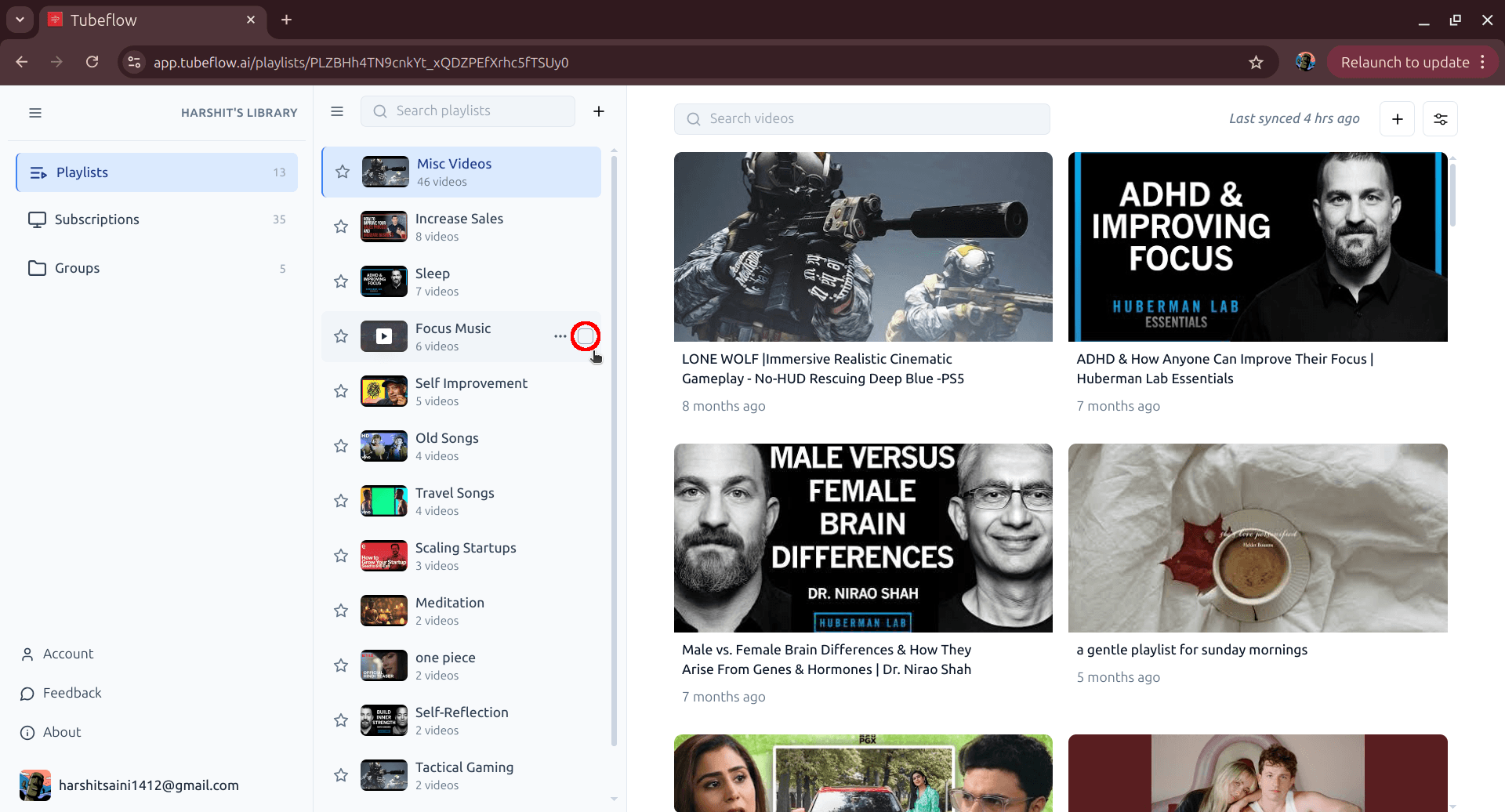
Step 1: Open Playlists in TubeFlow
In TubeFlow, click Playlists in the left sidebar to load your full playlist list.
Step 2: Select Playlists to Merge
Tick the checkboxes for all playlists you want to combine. Once selected, the top action bar shows the Merge option.
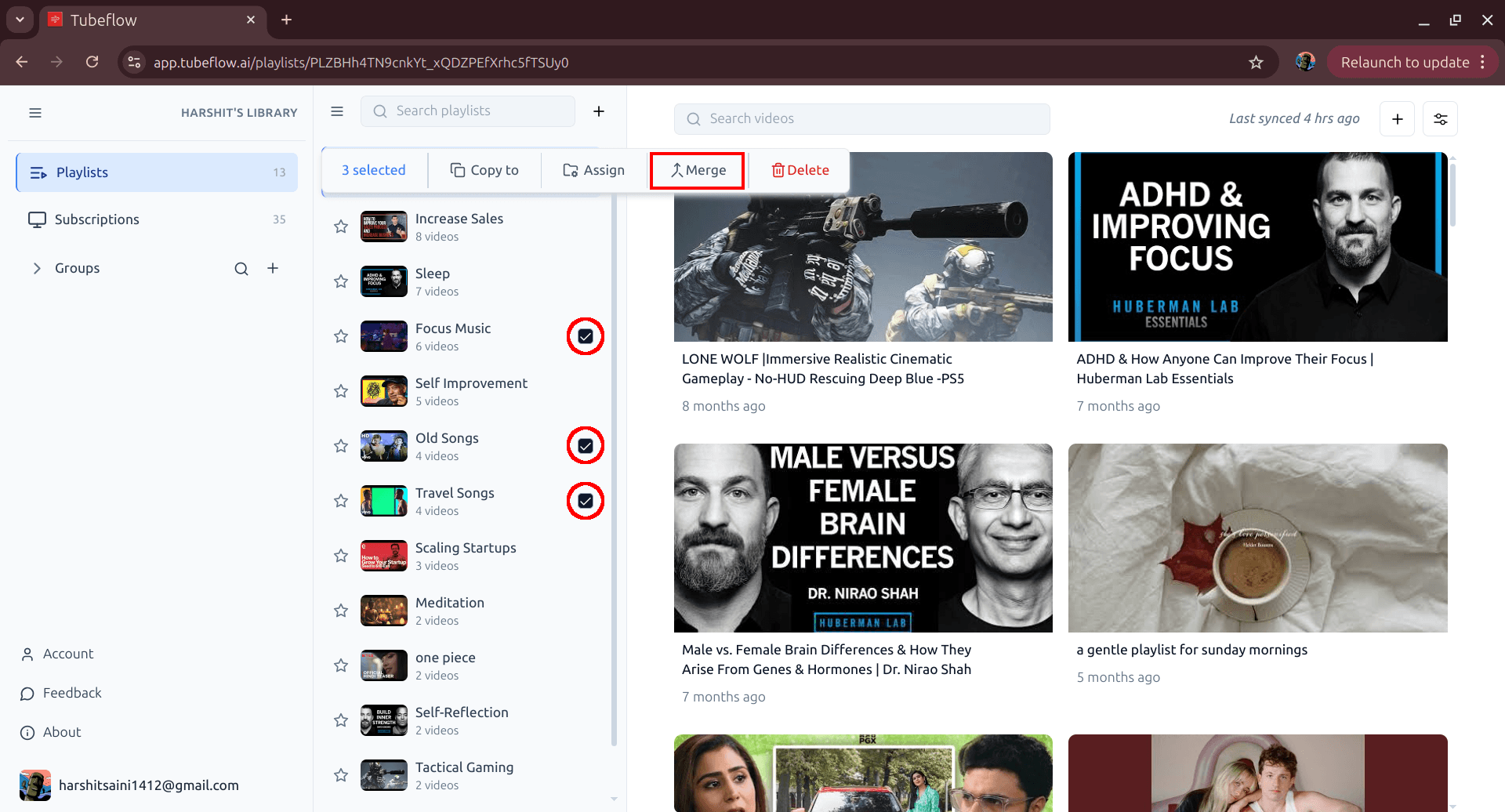
Step 3: Merge and Name Final Playlist
Click Merge, enter the final playlist name in the merge dialog, then confirm.
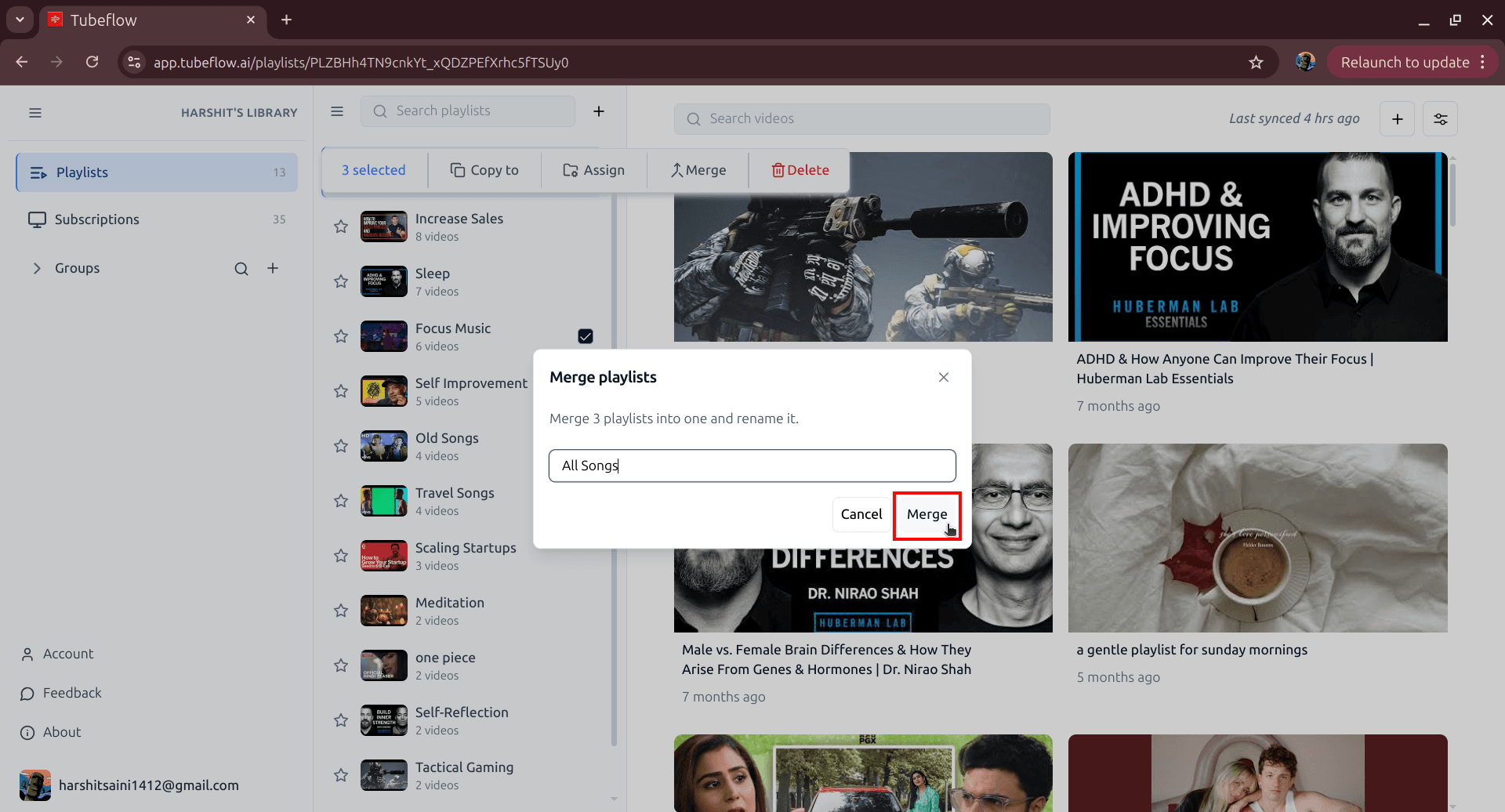
Done! Your selected playlists are now merged into one playlist with the name you chose.
Wrap Up
Manual merging is workable for small cleanup tasks. If you merge playlists regularly, TubeFlow is the faster and safer workflow.
Related Articles
How to Organize YouTube Playlists Into Groups (2026 Guide)
Organize multiple YouTube playlists into custom groups using TubeFlow. A fast step-by-step workflow to keep your library clean.
How to Organize YouTube Channels Into Groups (2026 Guide)
Organize multiple YouTube channels into custom groups using TubeFlow. Fast step-by-step workflow for a cleaner subscriptions view.
How to Unsubscribe from Multiple YouTube Channels Fast
Unsubscribe from multiple YouTube channels quickly. Step-by-step guide for manual cleanup and fast bulk unsubscription using TubeFlow.