January 5, 2026
How to Move/Copy Videos Between YouTube Playlists (Complete Guide)
Move or copy videos between YouTube playlists effortlessly. Complete 2026 guide with manual steps + Fast bulk operations using TubeFlow.
Posted by
 Harshit Saini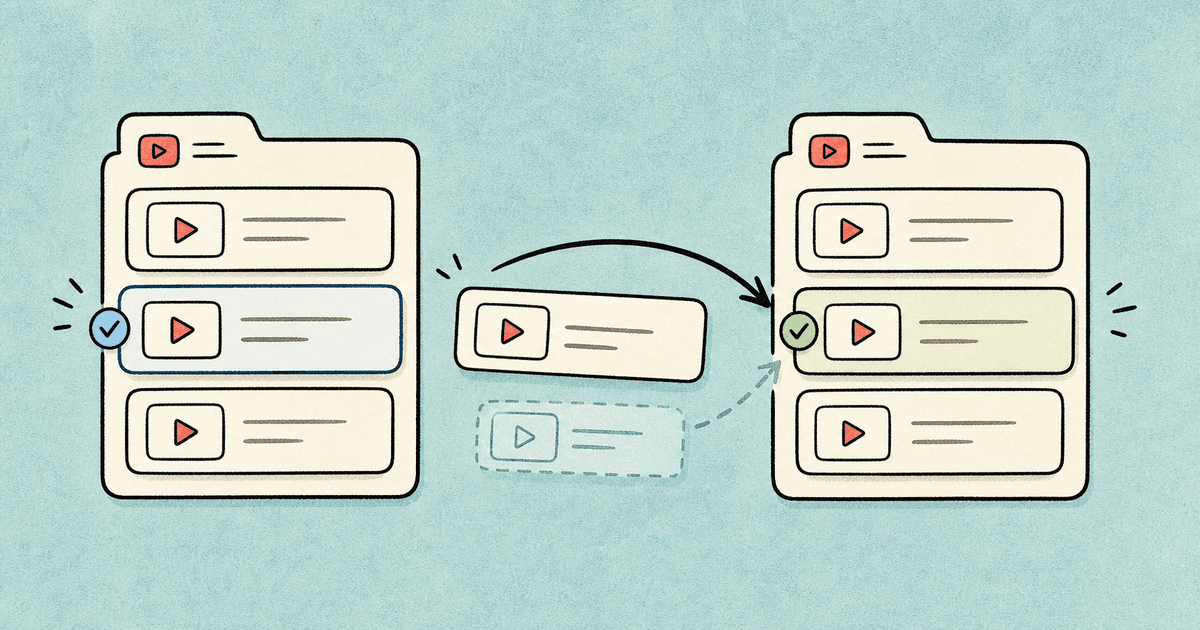
Let's say you want to move some videos from a YouTube playlist with name Focus Music to a YouTube playlist with name All Songs, you need to follow the steps mentioned below.
Want to organize your videos differently? Check out our guides on deleting multiple videos from playlists or deleting entire playlists.
Method 1: Manual YouTube Playlist Move/Copy (Slow)
Step 1: Open Your Playlists
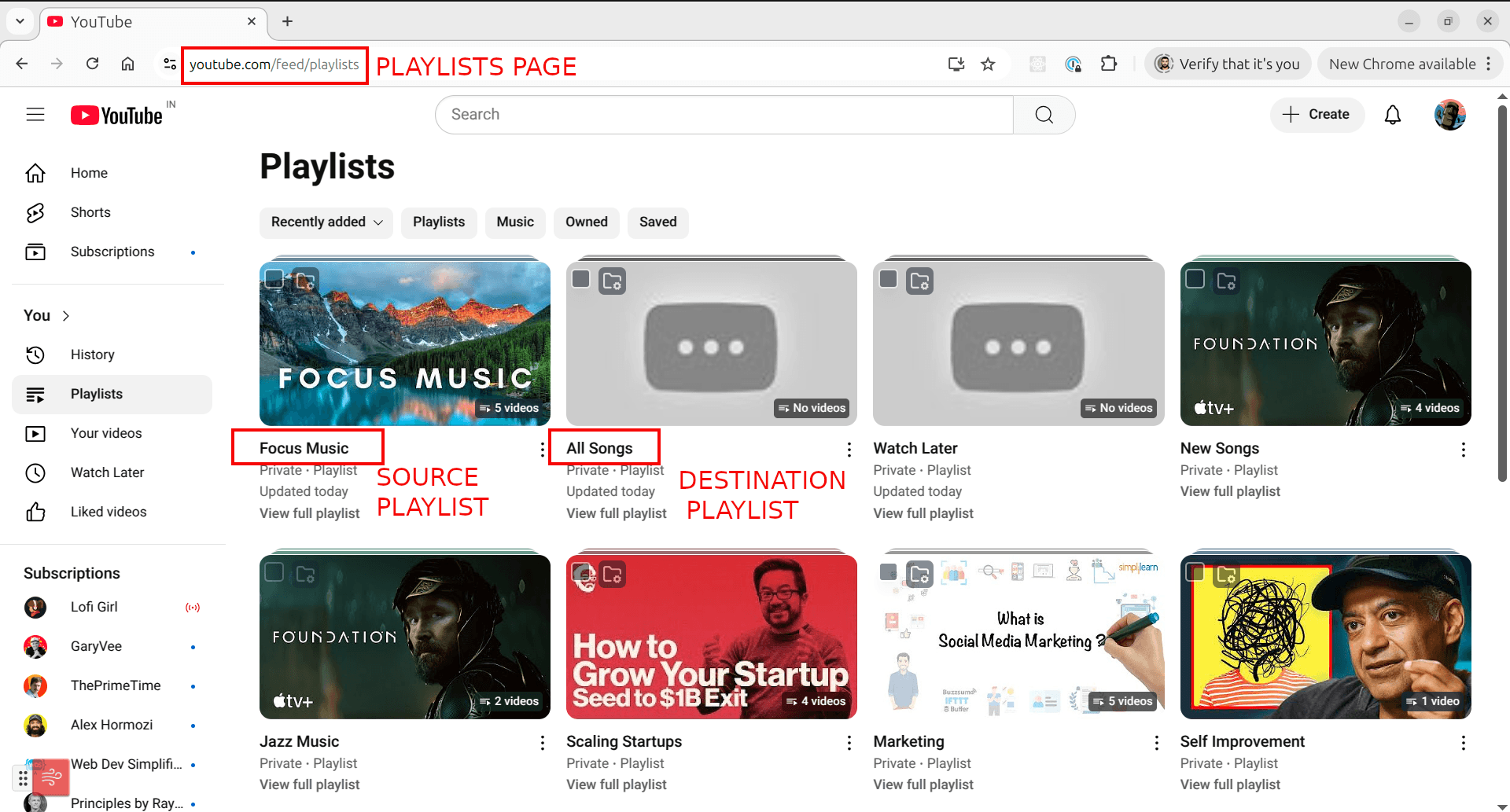
Open list of playlists by going to URL https://www.youtube.com/feed/playlists. Here you will see list of all playlists saved to your YouTube account. Click on Focus Music which is the playlist that contains the list of videos that we need to move.
Step 2: Access Video Menu
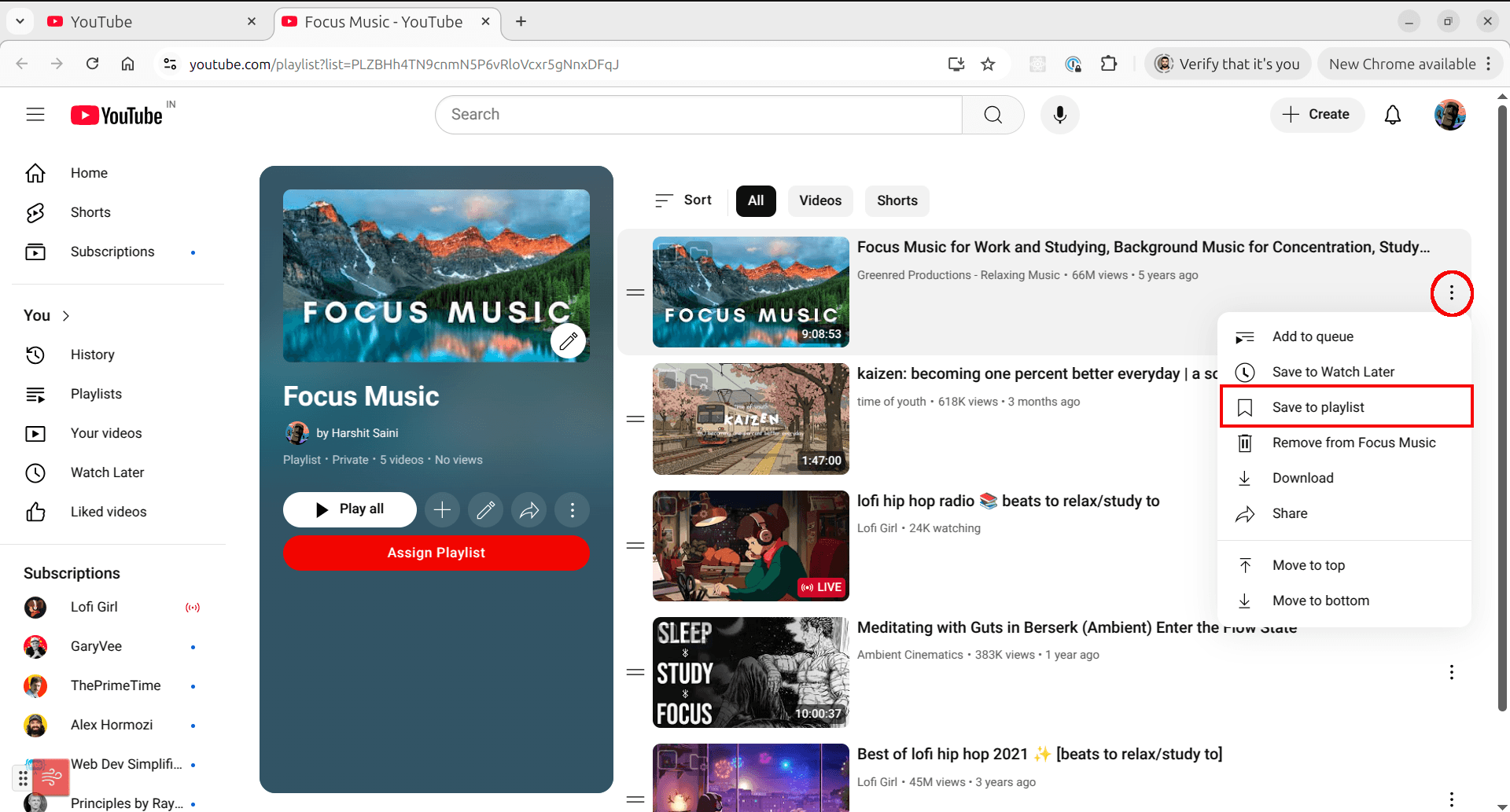
On the playlist page of Focus Music playlist, click on the menu button on the right side of a video panel. When the menu opens, click on Save to playlist button. This will open a submenu with list of all playlists.
Step 3: Move or Copy Video
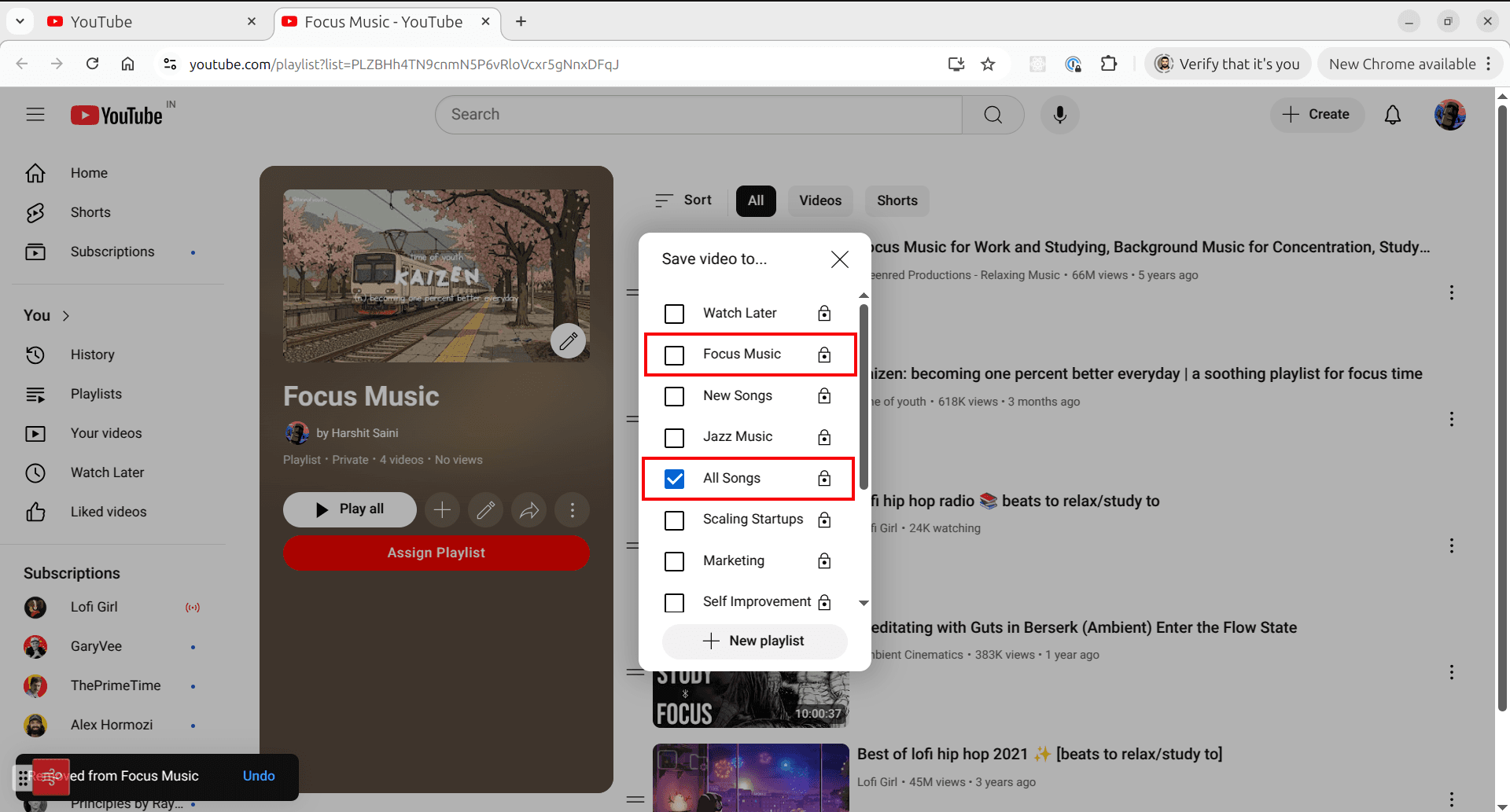
To Move: Unselect the checkbox of Focus Music playlist and select the checkbox of All Songs playlist. Unselecting the checkbox of Focus Music playlist removes the current video from Focus Music playlist while selecting the checkbox of All Songs playlist will add current video to All Songs playlist.
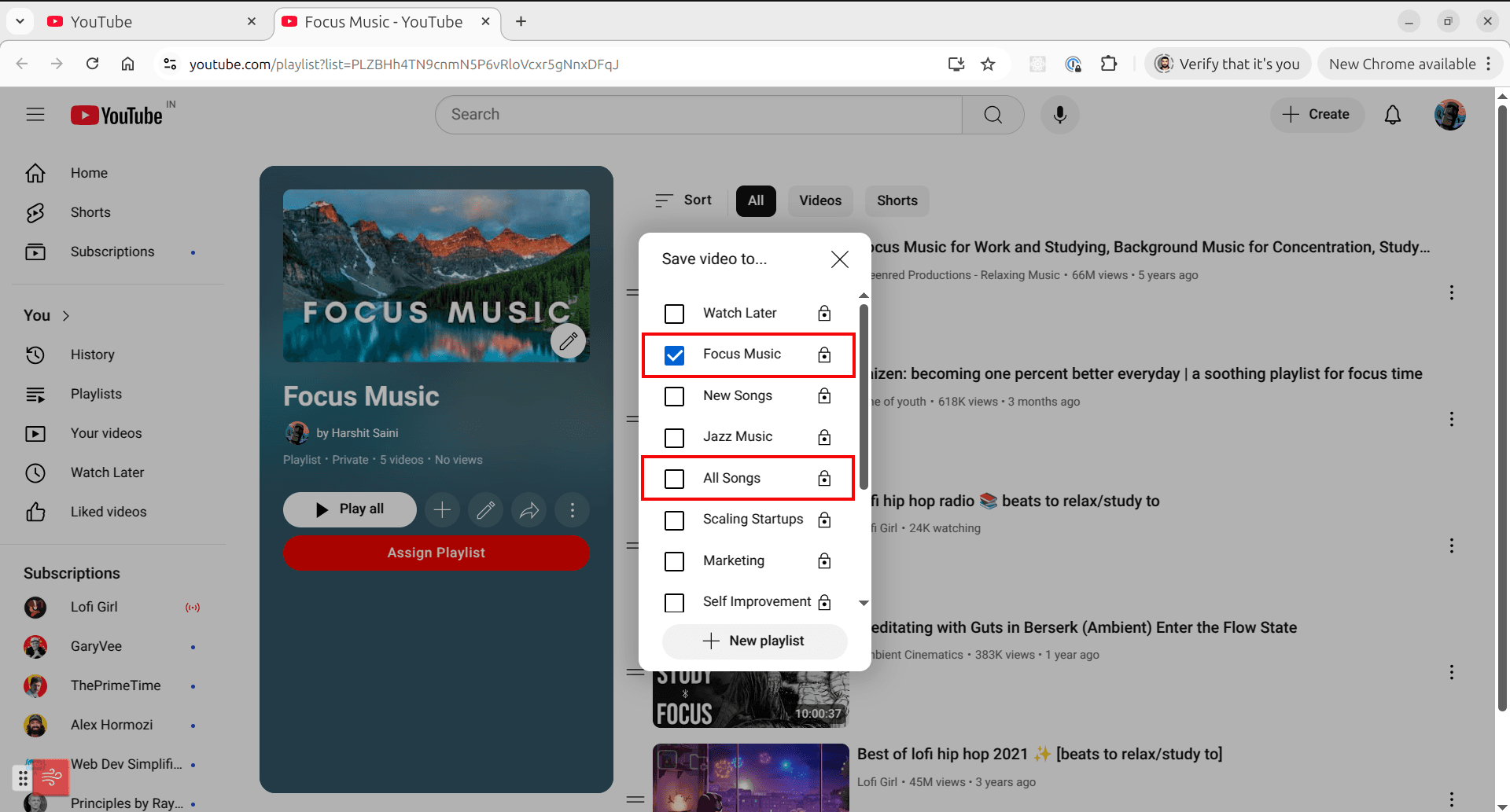
To Copy: Simply select the checkbox of All Songs playlist without unselecting Focus Music. This will copy the video to both playlists.
Below is the final state of the menu after selecting the destination playlist:
Step 4: Repeat for all required Videos
Repeat the previous step for all required video panels in order to migrate required videos from Focus Music to All Songs playlist.
Alright! You have successfully moved required videos from Focus Music to All Songs playlist.
While this is one of the fastest ways to move videos from one playlist to another, moving one video at a time is fairly slow and can take up a lot of time if the playlist contains a large list of videos.
Method 2: Fast Bulk Operations with TubeFlow (Recommended)
A fast alternative method is to use TubeFlow for achieving the same goal. It lets you move or copy multiple videos between playlists in one batch, which is much faster than doing it one by one in YouTube.
If you have already set up TubeFlow for your YouTube account, you can follow the steps below to move or copy a large number of videos from one YouTube playlist to another:
Step 1: Open the Source Playlist
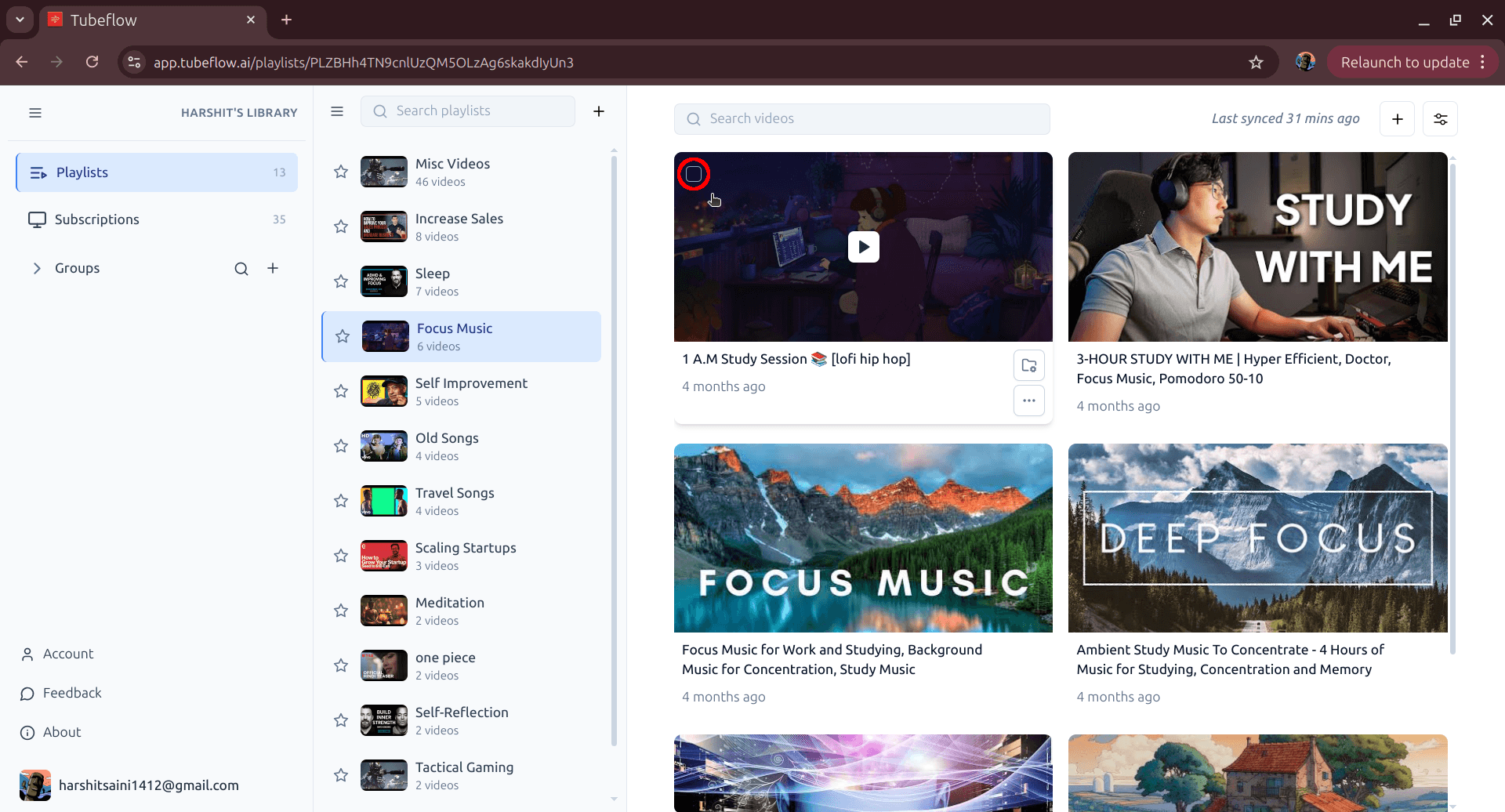
In TubeFlow App click Playlists in the left sidebar, then open the Focus Music playlist.
Step 2: Select Multiple Videos
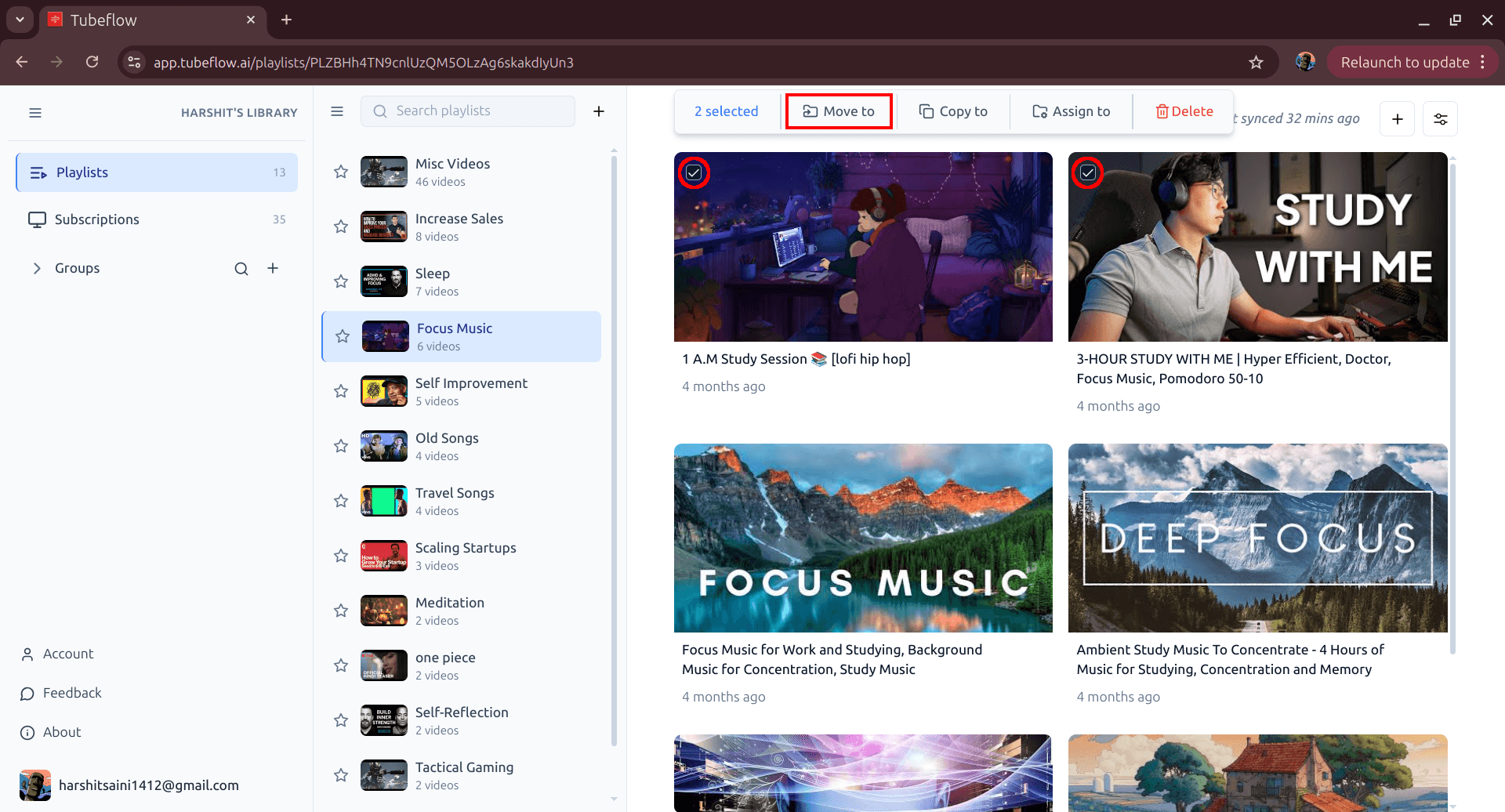
Hover over video cards and tick the top-left checkbox for each video you want to move or copy. After selecting videos, the top action bar appears with Move to and Copy to options.
Step 3: Bulk Move or Copy
Click Move to or Copy to in the top action bar, then choose the destination playlist from the playlist menu. Use Move to to transfer videos, or Copy to to keep videos in the source playlist as well.
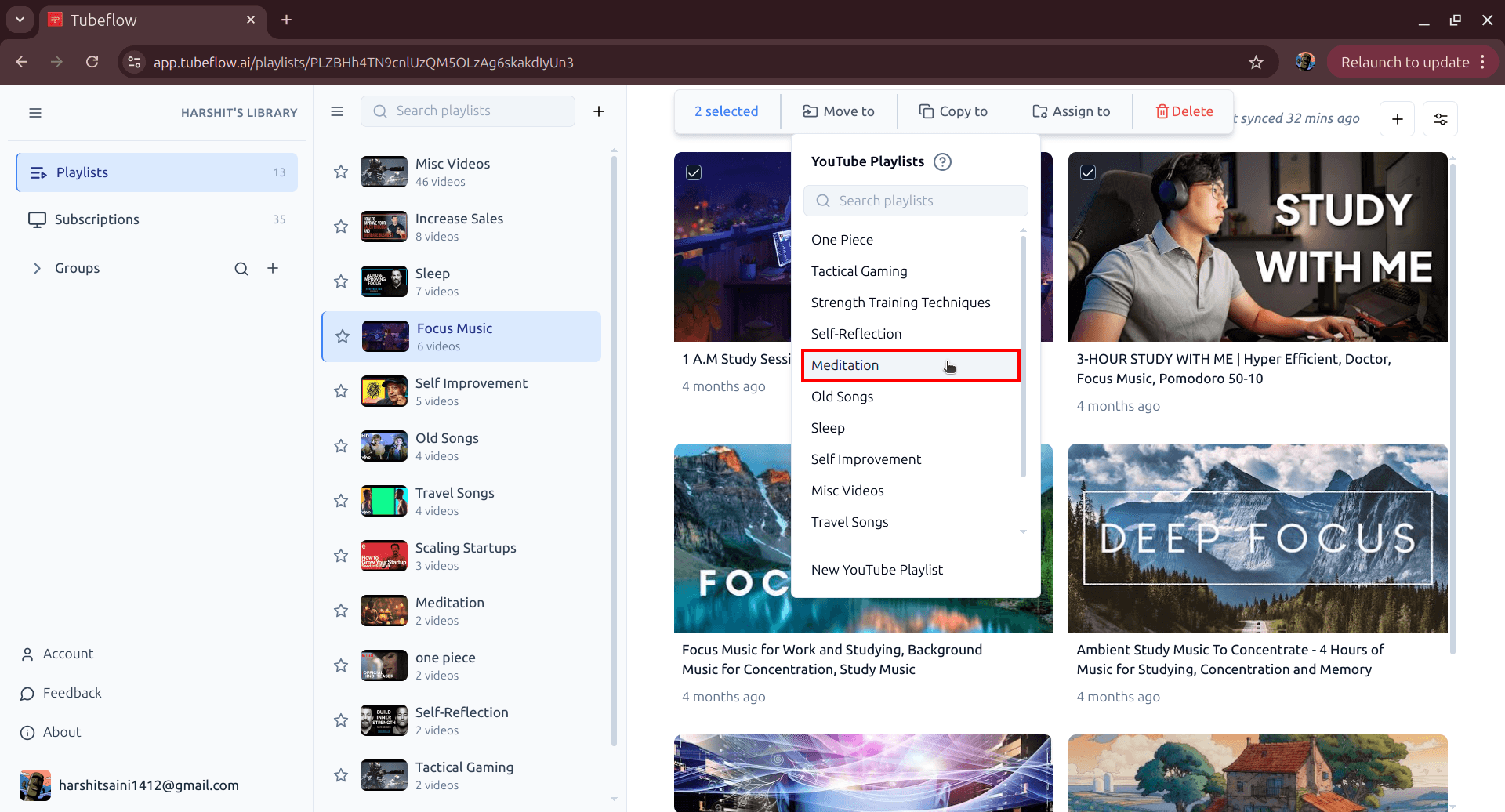
Perfect! You have successfully moved all required videos from Focus Music to All Songs playlist.
And That's a Wrap!
With these two methods, you now know how to efficiently organize your YouTube playlists by moving or copying videos between them. While the manual method works for a few videos, TubeFlow makes bulk playlist operations quick and effortless, saving you valuable time when reorganizing large music collections or video libraries across multiple playlists.
Related Articles
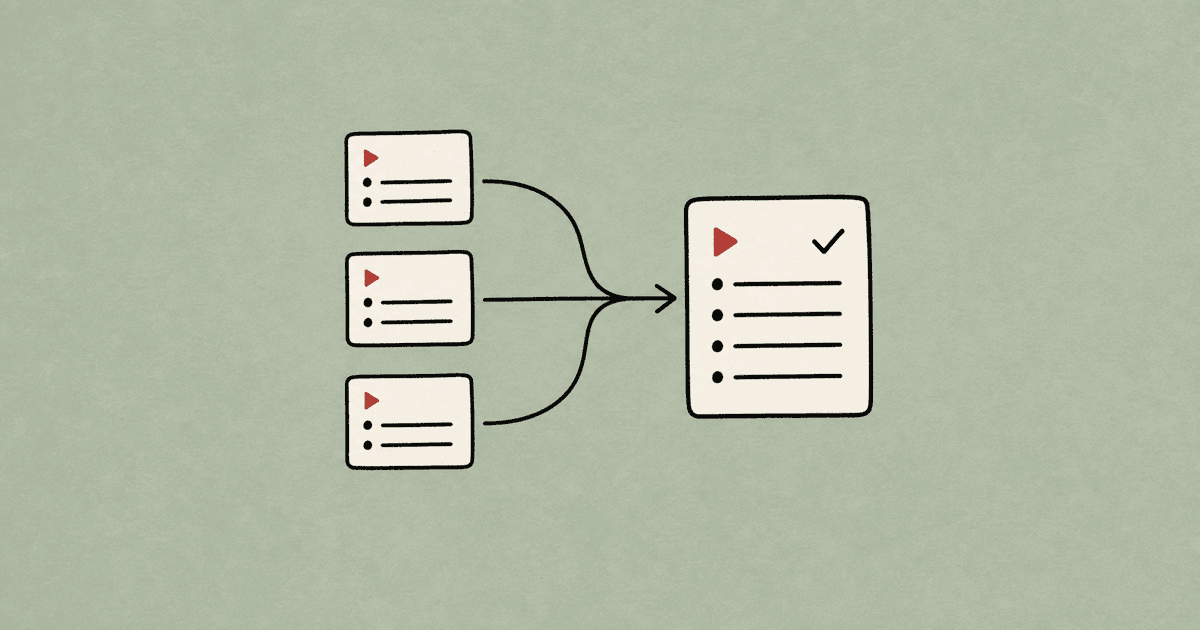
How to Merge YouTube Playlists Into One (2026 Guide)
Merge multiple YouTube playlists into one final playlist. Step-by-step manual method and faster TubeFlow merge workflow.
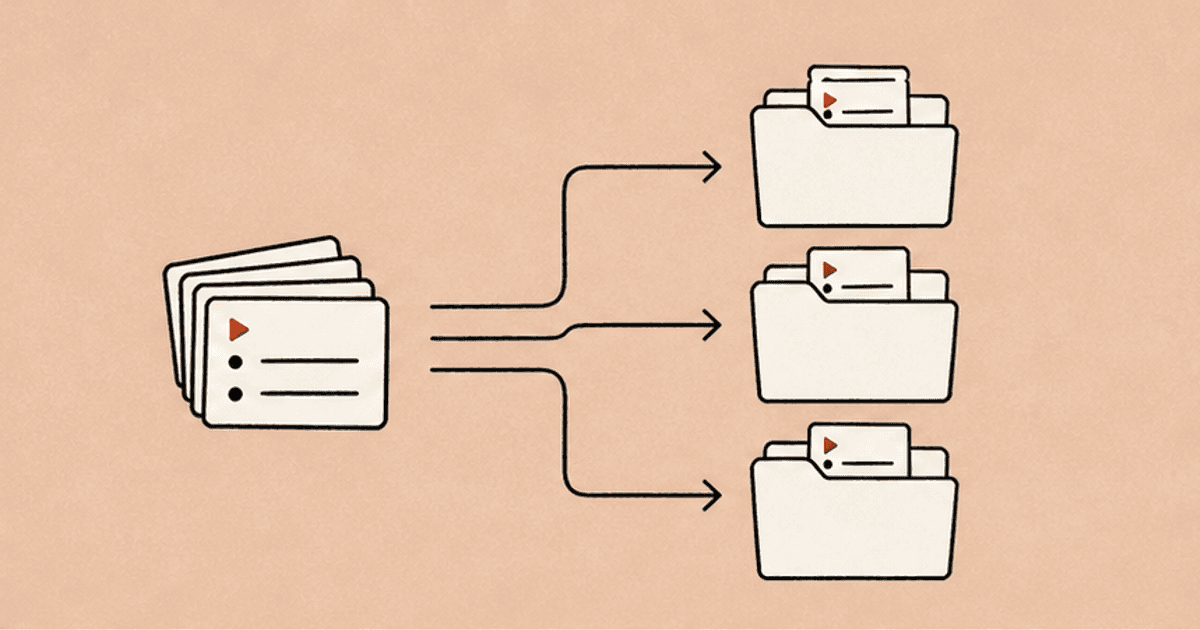
How to Organize YouTube Playlists Into Groups (2026 Guide)
Organize multiple YouTube playlists into custom groups using TubeFlow. A fast step-by-step workflow to keep your library clean.
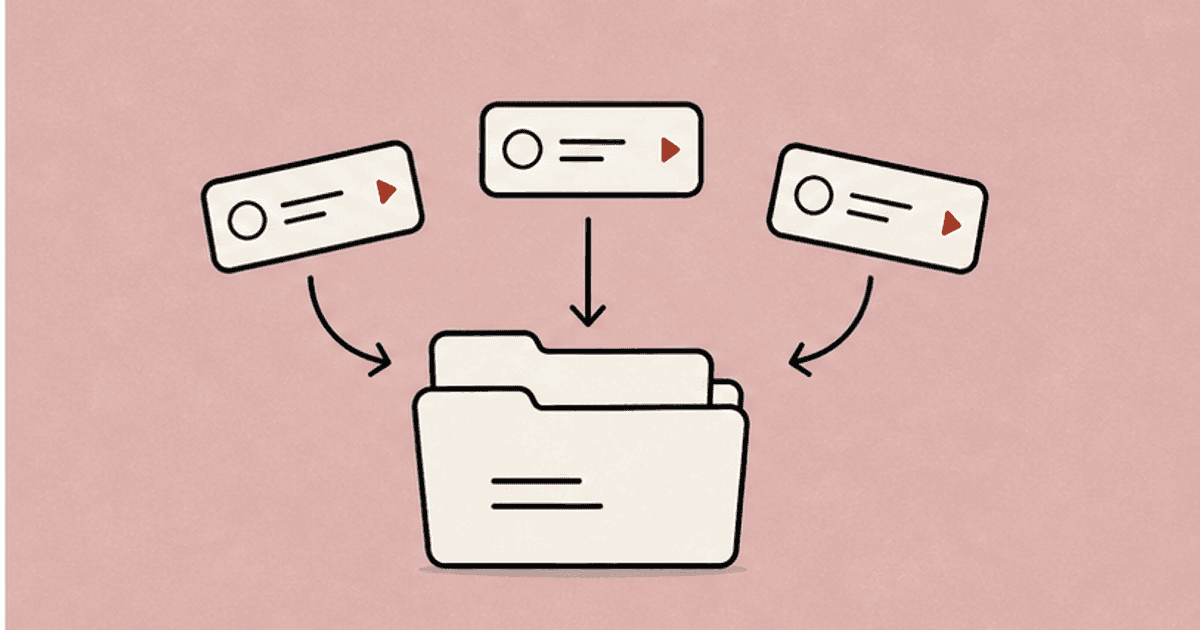
How to Organize YouTube Channels Into Groups (2026 Guide)
Organize multiple YouTube channels into custom groups using TubeFlow. Fast step-by-step workflow for a cleaner subscriptions view.